Hi, welcome to my tutorial
If you can turn your laptop or any compatible wireless adapters in your PC into a router without any software or programs, it'll be nice and save some of your penny $$$ that's right. You definitely can do it as well as me. it's so simple and easy just follow the steps below
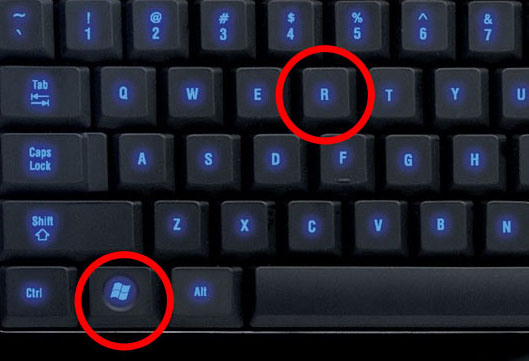
1. Press Window Key + R referred to image below
2. Type NOTEPAD then press ENTER or OK referred to image below

3. Now type the command below into your notepad or click here to download the full command file and skip to step 4.
netsh wlan set hostednetwork mode=allow ssid=yourhotspotname key=yourpassword && netsh hostednetwork start
Note: SSID is your hotspot name you can change it to what you want.
KEY is your password you can change it to what you want.
OK, you need to save it as bat file for example of your file name: (enable_hotspot.bat) and change save as type to all files as picture below

4. After you've saved your file already. Time to run it and share your internet from your PC to your smartphone or tablet. But don't forget to run it as administrator by right click on your file then select run as administrator. As picture below


At this step you'll be able to connect to the new hotspot which you have just created but you still didn't have internet access.
6. Open your Network Connection by press Window Key + R and type this command control ncpa.cpl into it then click OK or press ENTER. and you will see something similar this

7. Well, choose the correct network connection which you want to share and right click on it then select Properties.

8. This step you can do as the photo below ( choose which wireless network connection you want to share your internet over it) then click OK.

My is Wireless Network Connection 3 this mean I shared my internet connection over my wireless network connection 3. but your might different. It could be wireless network connection 2, 3, 4, or 5 it depends on your network connection.
==> Tip: How do I Choose My Network Connection
Look at this picture carefully : The hotspot I created name is "KAO" and it base on wireless network connection 3 that's why I choose to share over wireless network connection 3.

If you choose the correct wireless network connection your final result should look like the picture below

You have internet access.
If you have any problem just leave comment or click here to contact me directly. Thanks for visits my blog.
